In our daily life on the internet, there is a very significant function Gmail plays in the management of communications—newsletters, promotions, bills, bank statements, school announcements, and so forth. However, there are moments when we end up resubscribing to a particular list of emails by mistake or knowingly and then at a later time understand that we require these emails in the inbox again.
So, how do you resubscribe to an email on Gmail? Can you resubscribe right from Gmail? Is there just so conveniently some mystical “undo unsubscribe” button? Here, we’re going to walk you through all the methods, tools, and tips to resubscribe to emails in Gmail effectively, whether you were meant to unsubscribe, by mistake, or due to Gmail’s algorithm shuffling messages into spam.
Why You Need to Resubscribe
Let’s briefly discuss why you would have to resubscribe before we begin:
- Clicked on “Unsubscribe” by accident
- Gmail presented me with the unsubscribe to me since I was not very active
- The mail stopped coming, though not manually unsubscribed
- A newsletter or notice became relevant again
- Third-party unsubscribe tools disabled the sender
- Promotions or event notices were gone
Regardless of the reason, resubscribing can be easy once you understand how Gmail and senders treat mail preferences.
Understand How Gmail Processes Unsubscribes
Gmail adds an auto-unsubscribe link in the upper portion of most marketing mail. When you touch it, Gmail requests the sender system to remove you from their list. It requests it via the List-Unsubscribe header used by most ethical email marketers.
But there is no explicit Resubscribe button in Gmail. That is, you typically have to do something outside of the email program itself. Like go to the sender’s website or email support, to resubscribe.
Get the Original Email and Click the Sender’s Resubscribe Link
If you have an old email that the sender sent you:
- Open the email.
- Scroll down to the bottom of the message.
- Look for a line that reads “Click here to resubscribe” or “Manage your preferences.”
- Click the link and resubscribe.
There are resubscription links on some companies’ footers or allow you to manage subscription types.
Visit the Company’s Site
Most legitimate newsletters or services also have a subscription page on their site:
- Visit the sender’s site.
- Look for links containing the words “Subscribe,” “Newsletter,” “Sign Up,” or “Join the List.”
- Enter your Gmail account email address again.
- If prompted, confirm the subscription.
Tip: If you can’t track where the form is, try googling “company name + newsletter signup”.
Search for Unsubscribe Records in Gmail
Search Gmail using operators to track unsubscribed senders:
- label:^unsub – This indicates messages Gmail has filtered with unsubscribe labels.
- Search: unsubscribe to show emails that have been targeted for unsubscribe links.
After you’ve found them, you can resubscribe them using the same settings as Method 1.
Spam and Promotions Folder
At times, emails fail to appear because Gmail redirects them to spam or puts them in the Promotions folder.
- Go to your Spam folder.
- Look for the sender’s emails.
- Tap “Not Spam.”
Also:
- Open the Promotions folder.
- Drag emails that you want to see into the Primary folder.
- Gmail will ask you if you would like to do this for this sender each time. Select Yes.
Utilize Third-Party Email Preferences Page
If you have ever used services like Unroll.Me, Clean Email, or Leave Me Alone:
- Sign into the service.
- Navigate to your Unsubscribed list.
- Find the email sender you would like to restore.
- Select “Resubscribe” or undo the unsubscribe.
Note: Resubscription is not handled by all third-party unsubscribe tools. Check the app’s documentation or support.
Talk Back to the Sender
If you are unable to find the resubscribe link:
- Go to the sender’s or company website.
- Look for the Contact Us page.
- Email in order to be added back.
Example message:
“Hi, I think I accidentally unsubscribed from your mailing list. I’d like to subscribe again and continue getting emails. Add me back. My email address is: [your Gmail]. Thanks!”
Employ Gmail Filters to Place Priority Senders First
To not lose emails again:
- Navigate to Gmail Settings (⚙️ → See all settings).
- Click on Filters and Blocked Addresses.
- Create a new filter with the sender’s email.
Choose options like:
- Never send to spam
- Classify as Primary
- Star it automatically
This brings future emails to the forefront.
How to Stop Gmail Auto-Unsubscribes
Google sometimes suggests that you unsubscribe from low-engagement senders. You can prevent these suggestions by:
- Opening emails on a regular basis
- Opening links or buttons in emails
- Replies to important newsletters
- Mark them as “Not Spam” if you find yourself there at all
Resubscribe When You Unsubscribed by Error in Gmail’s Prompt
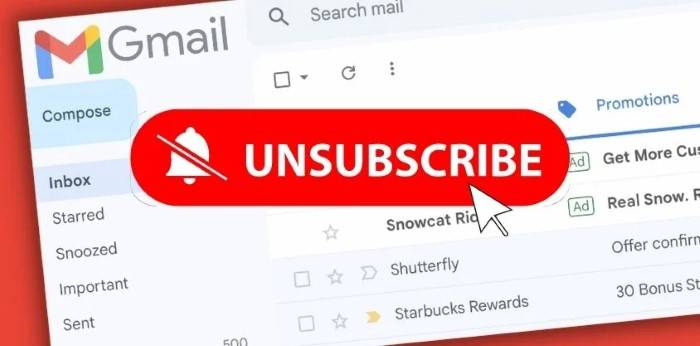
Gmail shows an “Unsubscribe?” notice over an infrequently accessed email periodically. In case you accidentally clicked “Unsubscribe”:
- Open an old message from the sender
- Scroll down footer and look for subscription settings
- Or, use the steps above to resubscribe
What If You Can’t Resubscribe?
In case the email sender lacks a visible way of rejoining:
- Sign up with a different Gmail account
- Use an alias ([email protected])
- Contact support directly
There are a few things that prevent re-subscription for a cooldown period, so you can:
- Wait
- Use another email
So, use the below steps while using Google Contacts to whitelist senders so they deliver:
- Navigate to contacts.google.com
- Click “Create contact”
- Type the sender’s name and email
Gmail will encourage it more to trust and give priority to similar emails from contacts.
Utilizing Gmail Labels to Organize Re-Subscribed Emails
You can label each newsletter:
- Open email
- Tap “Label” (tag symbol)
- New labels such as “Newsletters” or “Resubscribed”
- Automate with filters
This maintains your inbox tidy and permits improved subscription management.
Mobile Gmail App Resubscription Tips
On the Gmail app (Android or iPhone):
- Utilize the search tool to locate unsubscribed senders
- Open in Spam or Promotions
- Tap “Not Spam” or swipe to Primary (iOS)
- Go to sender’s site in Chrome/Safari and resubscribe there
Summary: What You Have to Do to Resubscribe in Gmail
- Search for links in the footer of previous messages
- Go to sender’s site to resubscribe
- Search Gmail with filters to locate old mail
- Check out third-party unsubscribe services
- Contact manually with sender
- Use Gmail filters to avoid future clashes
Best Practices for Staying Subscribed
- Do not use bulk unsubscribe services if not necessary
- Don’t leave emails sit around for months, it lowers sender engagement score
- Include addresses and create filters for guaranteed delivery
- Scan your Spam folder regularly
- Assign a special category or label to subscriptions
Search for Gmail Promotions Tab Filtering
Sometimes you are still subscribed but Gmail’s Promotions tab is suppressing your messages from the Primary inbox. Most promotional or newsletter messages automatically get delivered to the tab, and you never get to see them. To fix this, drag an email from Promotions to Primary and choose “Always do this for future messages.” This tells Gmail to deliver those messages to your main inbox and lets you never miss something important, without requiring you to re-subscribe.
Reach Out to the Sender for Re-subscription Help
If you have tried all of those and still cannot receive emails from a specific sender, your next best bet would be to reach out to them personally. Business newsletters or even businesses tend to have customer support personnel who can manually resubscribe your email into their mailing list. Look for a “Contact Us” or “Help” link on their website. Give them your Gmail address and include a polite request asking them to resubscribe you. This process is helpful if your mail has been throttled. Due to hard bounces, spam complaints, or lack of activity.
FAQs
Does Gmail have a resubscribe button right away?
No. Gmail will not provide you with a resubscribe button. You will have to use the sender’s method.
What if I don’t have an old email the sender has previously sent?
Search for the sender’s name or keywords. If not, visit their site and resubscribe.
Why weren’t my Gmails showing emails anymore even though I didn’t unsubscribe?
They could be being transferred to Spam or Promotions. Go check those folders and use filters.
Can I use the same Gmail in case I got unsubscribed earlier?
Yes. As long as the sender didn’t block re-subscription for some time, your Gmail is active.
Why is Gmail constantly asking me to unsubscribe from an email I enjoy?
Open it regularly and click links to express interest.
Gmail is a clever system but not perfect at managing subscriptions. Resubscription to messages you accidentally left behind can be accomplished with the correct strategy. Either via an old email signature, a company website, or a help desk mail address, there are several methods for resubscribing to a list.
By doing this as described above, you not only will be compelled to resubscribe. You’ll also avoid losing important information in the future. Stay informed, stay organized, and in charge of your inbox in 2025 and beyond.