

Gmail is accessed by most people around the world. Millions of people use it daily for business, school, and other purposes. Gmail generally has a white theme but with black letters. Even though this seems tidy, at times it gets too bright, especially when checking your mail late in the night or with little lighting in the room.
This is where dark mode comes to the rescue. Gmail does have one feature where you can switch your email background to darker shades of colors. It is easier on your eyes, saves some battery life on phones, and just feels new.
Here, we are talking about what is Gmail dark mode, why you should turn it on, and how you can turn it on step by step on computers, Android, and iPhone.
What Is Gmail Dark Mode?
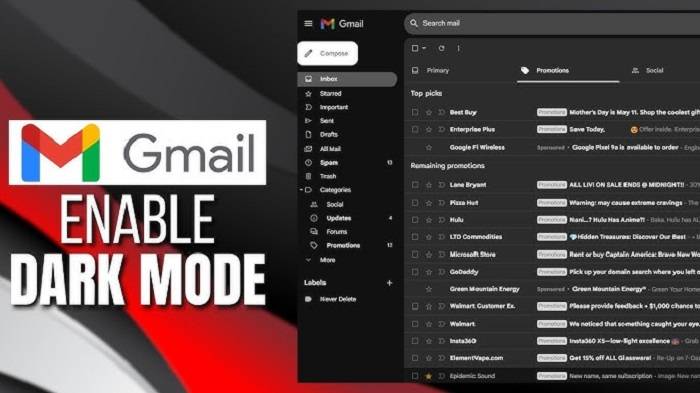
This is an option that inverts the background color. It turns the color from white to dark grey or black. The letters are lit in it. So that you can still read them without any problems.
It’s the same Gmail, but softer and less eye-strain inducing look and feel, if you read and write hundreds and hundreds of e-mails. Gmail dark mode can be used on desktop web, Android app, and iPhone app.
Why Use Gmail Dark Mode?
There are several reasons why you should turn on Gmail dark mode:
- Easier to glance at in the evening – It is simpler to look at a black screen compared to a white screen.
- Improved sleep – Lighted screens at bedtime can interfere with your sleep. Dark mode decreases that.
- Power saving – In OLED or AMOLED screens, dark mode saves energy.
- Look better from now – There are certain people who just consider the black background to be more pleasing to the eye.
- Clarity – Because there would be less glare, you would be able to pay attention to what is inside the email.
Let’s discover how to enable Gmail dark mode in steps.
How to Enable Gmail Dark Mode on Computer
If you’re using Gmail on your computer via a browser. Then you can enable dark mode in a few easy steps.
- Turn on your computer. Lunch Gmail and login.
- In the top-right corner, click on the gear icon.
- You will get the option Quick settings.
- In the search box, type Theme and click on View all.
- Scroll down and choose the dark theme.
- Click Save.
Your Gmail will now look dark mode on your desktop.
Extra Tip
If you don’t want the full dark theme, Gmail also features some other themes such as darker shades, light shades, and background images. You can choose one according to your will.
How to Put Gmail in Dark Mode on Android
The Android Gmail app natively supports dark mode. Enable it:
- Open the Gmail app.
- Touch the top-left three horizontal lines menu.
- Scroll down and tap Settings.
- Select General settings.
- Tap Th
- Select Dark.
Your Gmail app is now in dark mode.
Second Android Tip
If your device is in system-wide dark mode, Gmail will switch to it automatically unless you reset the theme to System default.
How to Set Gmail to Dark Mode on iPhone
Dark mode is also available for iPhone and iPad users with Gmail. How to do it:
- Open the application on your iPhone.
- Click the three lines menu.
- Swipe and click Settings.
- Click Theme.
- Choose Dark.
Or, if you have an iPhone with iOS 13 or later installed, you can enable the system dark mode as a system wide feature. Gmail will adopt the system then.
Enabling it in iPhone System-Wide
- Open the Settings application.
- Swipe down or scroll down. Tap on Display & Brightness.
- Under Appearance, tap on Dark.
This will activate dark mode on the whole phone, including Gmail.
How to Disable Dark Mode in Gmail
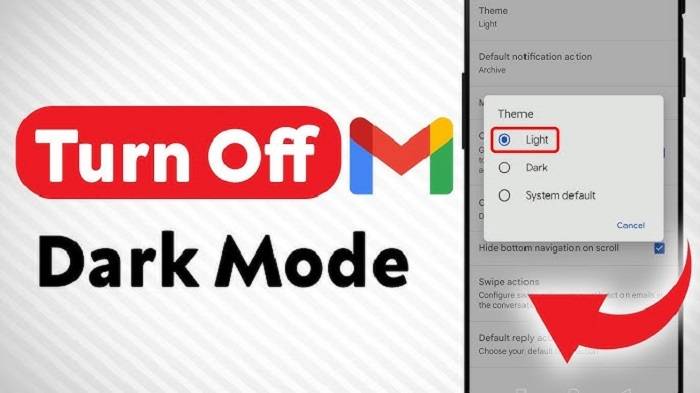
You can disable dark mode if you do not like using dark mode or it is hard to read.
- On the computer – Go to Gmail Themes and select the default light theme.
- On Android or iPhone – Gmail app Settings > Theme > Light.
This will revert back to the default Gmail light background.
Gmail Dark Mode Problems
Sometimes, users experience issues in turning on dark mode in Gmail. The below are some of the most common ones:
- Dark mode feature unavailable on mobile phone – Make sure your Gmail app is at the latest from the Play Store or App Store.
- Dark mode not working on computer – Try reloading Gmail after enabling the dark theme, or clearing the browser cache.
- Some emails still appear white – It is so because most of the emails have their own background color or formatting. Gmail is unable to alter those.
- Dark mode consumes battery – Dark mode doesn’t save battery on certain LCD screens. It saves battery on OLED or AMOLED screens only.
- Difficult to read outside in sunlight – Dark mode maybe is not ideal in direct sunlight. Switch over to light mode if needed.
Gmail Dark Mode Hacks to Maximize Usage of It
- Turn on system-wide dark mode on your phone for a uniform look across your phone.
- Make use of dark mode and large font size if more readable.
- For still-too-light messages, enable reader mode on your phone or browser for simpler reading.
- Flip in between light and dark by day and night for maximum convenience.
- Get your Gmail app updated to always get the latest dark mode features.
Why Gmail Dark Mode is Useful for Work and Study
Dark mode is not just a skin issue. It really is a productivity booster for many people.
- For professionals – Dark mode gets eye relief credit from people who type and send emails for hours without pause and allows them to work longer.
- For students – Studying late night to scroll through assignments and course mail is less tiring thanks to dark mode.
- For remote workers – If you work across time zones and open Gmail in off-hours, dark mode reduces screen glare.
Briefly, dark mode can become tiresome long strings of email less and more efficient.
It is simple and easy to turn on dark mode. Not only does it provide your inbox a new look. It also makes your emails less stressful to the eyes. It is good for the night or in low-light environments especially.
A click or two is all that’s needed to enable dark mode. In the event that you ever come to the point where you no longer need it, clicking it on again to the light theme is also simple.
Try dark mode in Gmail today. You may find your inbox cleaner, easier to read, and make your email day a little better.