
We’ve all made this mistake, you hit “Send” and instantly regret it. Maybe you’d forgotten to attach the file, typoed, or sent the message to the wrong person. In the cyber storm of today, mistakes can happen. Luckily, Gmail makes it possible for you to recall an email, or more specifically, “unsend” it.
If you’re asking yourself, “Can I really recall an email in Gmail?” or “How long can I recall a sent message?”, well you’ve landed on the right page.
This full 2025 guide will walk you through recalling an email in Gmail, how to set your undo time higher, how it compares to other email services and what to do if the recall time has expired.
Can You Unsend an Email in Gmail?
Yes, Gmail offers the ability to “unsend” or recall an email using the Undo Send feature—but there’s a catch.
It only takes a few seconds after it hits send. Gmail doesn’t actually pull the message back out of the recipient’s inbox when you send. Gmail actually delays sending for a few seconds so you can cancel sending.
So technically, Gmail buffers your mail in a window which you can Undo and cancel sending.
This means:
- You can recall an email
- But only for a short time window (5, 10, 20, or 30 seconds)
- Can’t be removed once sent like in Outlook
Gmail’s recall function is ideal for:
- Correcting spelling errors
- Correcting tone errors
- Adding attachment you forgot
- Preventing the wrong recipients from reading the message
How Gmail’s Undo Send Feature Works
When you send an email using Gmail, a small notice will appear in the bottom-left corner with the following message:
- “Message sent. Undo View message”
- You can click Undo within the timer duration to stop Gmail from sending that message. It’ll appear in the Compose box. Which you can then edit or cancel.
- After the timer runs out, the message has been sent for good and cannot be recalled.
This obviously works both in Gmail and on desktop and mobile apps.
How to Unsend or Recall an Email in Gmail (Desktop)
Step by step to recall or unsend an email from your computer browser:
- Sign in to Gmail
- Compose your email and send it
- Rapidly look at the bottom left of your screen
- Click Undo when you notice “Message sent”
- Your email will reappear to edit or delete
If you are not fast enough to click on Undo, the button disappears and the message is gone forever.
Recalling an Email in Gmail (Mobile App)
The mobile app for Gmail for Android and iOS also has Undo Send.
Instructions:
- Open the Gmail app
- Compose and send an email
- Look at the bottom of your screen
- Click on Undo in the black banner notice
Your message will return, allowing editing or deletion
This is precisely the same on mobile devices. The key is timing, click Undo before the countdown runs out.
How to Lengthen the Undo Send Time in Gmail
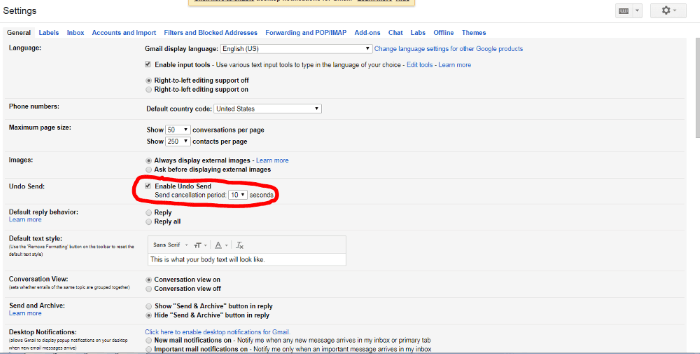
Gmail gives you automatically 5 seconds to recall an email, which is not sufficient. You can extend this to 30 seconds.
Here is how to do it:
- Open Gmail on computer
- Click on the gear icon (⚙️) and then See all settings
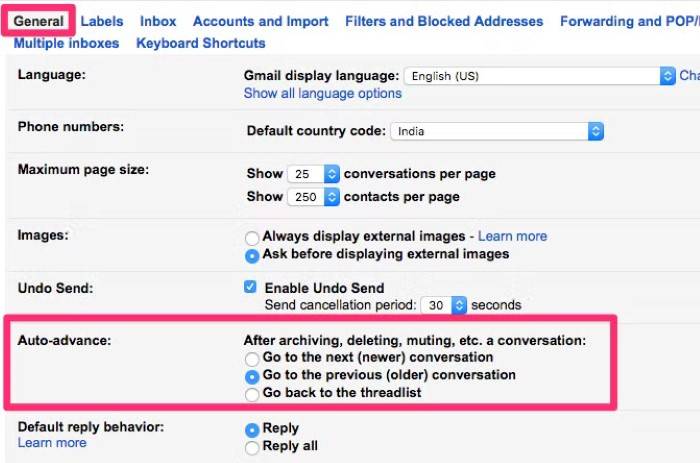
- Under General, locate Undo Send
- From the dropdown list, choose 5, 10, 20 or 30 seconds
- Scroll down and click Save Changes
After it’s set up, Gmail will wait for so many seconds to send your mail, giving you a larger recall window.
Undo Send Time Limit Options Explained
There are 4 limits of time in Gmail:
- 5 seconds – For pushy senders or speedy typists
- 10 seconds – Enough time to change your mind about a message
- 20 seconds – A fair middle option
- 30 seconds – Largest buffer to catch issues
Choose one which works best for your workflow.
What’s the Deal with Limited Undo After a Closed Undo Window?
When the undo timer expires:
- The message lands in the recipient’s inbox
- You can’t edit, delete or recall the message anymore
- Gmail can no longer delete it from the recipient’s server
Everything that remains to be done now is:
- Send a follow-up correction
- Tell the recipient to ignore or delete the original message
- Apologize, if needed
Unfortunately, Gmail doesn’t support post-delivery recalls such as some Microsoft Exchange configurations.
Gmail Recall vs. Outlook Recall: What’s the Difference?
Outlook (business users) has a true message recall, if sender and recipient have Microsoft Exchange.
And here’s where they differ:
- Gmail: Places email in queue for up to 30 seconds prior to sending; offers window to cancel send within 30 seconds
- Outlook: Tries to delete the email from the recipient’s inbox after it is sent (not always successful)
Overall, Gmail’s approach is firmer specifically because Outlook’s recall will occasionally fail quietly.
What Happens if You Bypass the Undo Feature?
If the recall timer expires, employ these damage-control tactics:
- Send a correction email
- Use proper content or file
- Apologize briefly professionally
- Employ subject lines of “Correction,” “Updated,” or “Please disregard prior email
Don’t panic! The quicker you follow up, the better
Prevention Tricks for Escaping Disasters When Sending Email
Even though Gmail’s undo functionality is convenient, a little bit of prevention is better than the cure.
Utilize these habits so that you won’t have to remember messages:
- Double-check recipients twice (especially To/Cc/Bcc)
- Place the recipient last, after writing the email
- Grammarly or something similar for proofreading
- Turn on “Confirm before sending” on phone
- Use Undo Send for 30 seconds
- Check links and attachments every time
Waiting momentarily before sending avoids embarrassing misfires.
Enabling Gmail Labs Features for Improved Recall
Gmail Labs previously accommodated testing features. But most recall needs are now fulfilled by its built-in settings.
However, productivity features like Templates, Smart Compose, and Custom Keyboard Shortcuts help send messages with fewer errors.
- Enable Smart Compose to get context-driven suggestions
- Use templates to avoid starting each time
- Shorten correction process by customizing shortcuts
- Undo Send with Scheduled Emails
You know that scheduled emails in Gmail follow the same rules too?
When sending an email scheduled:
- You can’t undo after it has been sent
- You can cancel or edit at any time before the scheduled time
Unsending a scheduled email:
- Go to Scheduled in the left-hand menu
- Click on the email that you want to undo
- Click on Cancel send
- The email goes back to Drafts
There, you can make changes or delete before sending.
Can You Ever Retrieve a Gmail Email After 1 Minute?
No. If the Undo Send timer elapses, the email is sent irretrievably.
Even when you have set a 30-second delay, all bets are off thereafter.
Can You Recall Gmail Emails Sent to Many Recipients?
Yes, as long as you click Undo within the buffer time. It doesn’t matter how many recipients there are. The message is stopped for all of them once you click Undo quickly enough.
If the undo timer expires, all the recipients receive the email. There’s nothing that can be done about removing it from some or all of them.
Can You Recall Emails with Attachments in Gmail?
Yes, provided you’re still within the Undo Send timeframe.
If you remembered that you’d left out something, then simply Undo, add the file, and resend.
Tip: Gmail also interprets comments such as “I’ve attached…” and will prompt you to add a file if you forget.
Undo Send and Confidential Mode
Should you be sending confidential data via Gmail’s Confidential Mode, you may wonder whether Undo Send remains an option.
The response is yes.
- Undo Send functions exactly the same with Confidential Mode
- You can cancel delivery within your chosen time limit
- Confidential Mode also adds expiration and access control
However, once sent, even confidential emails cannot be retracted after the undo window closes.
Undo Send and Third-Party Gmail Clients
If you’re using a third-party email app or client, Undo Send usually won’t work.
That’s because:
- Undo Send is a Gmail server-side feature
- Third-party clients send often instantly using SMTP
- No delay window is available outside of Gmail’s built-in interface
To function best, use the web or mobile app version of Gmail on messages that you may wish to recall.
FAQs
Can I recall an email after 10 minutes?
No. Gmail recalls only 5–30 seconds.
Can I recall messages in Gmail on mobile?
Yes. Tap on Undo at the bottom notification the moment you have sent.
Is Gmail Undo Send done automatically?
Yes, once enabled, Gmail offers the Undo option on all emails.
Can one recall emails sent to a different Gmail account?
Only if done within the Undo time frame. Once sent, no recall.
Can I enable Undo Send on a Google Workspace account?
Yes, Undo Send can be accessed in Workspace and individual Gmail accounts.
What happens if I close the tab immediately after clicking Send?
The message gets delivered unless you reopen Gmail and choose Undo within the time frame.
Can I also undo calendar invitations?
No. Emails alone can be undone in Gmail, not calendar events.
Can I also undo sent emails via Gmail filters or scripts?
No. Filters don’t remember sent messages. There is just a single choice: Undo Send.
Does Undo Send bring back replies and forwards?
Yes. It does for new messages, replies, and forwards too.
Can I bring back an email if my internet connection goes out right after sending it?
Maybe, if Gmail hasn’t sent it yet and you get back online within the Undo time frame.
Tips to Master Email Recall in Gmail
- Set Undo Send to 30 seconds, the max buffer
- Add recipients only when you’re 100% ready
- Proofread and re-read emails
- Use checklists before pressing Send
- Avoid sending emails late at night or under stress
- Consider using Confidential Mode for sensitive info
- Use templates for repeated messages to reduce risk
- Add “Undo” to your muscle memory after every send
Gmail’s remembering an email is not a fantasy, it’s a real, incredibly helpful function that can get you out of making so many mistakes. However, as with all the best things in life, there must be an end to it. Undo Send provides you with a valuable window—up to 30 seconds—to abort a message in its tracks.
No matter whether lost attachment, lost name, or embarrassing blunder, the recall of a Gmail message offers you a second chance. Once the window has closed, however, correction, follow-up, and damage control are all that remain to you.
Now that you’ve learned how to undo an email in Gmail, how to extend the undo window and how not to make additional mistakes when sending. You’re ready to send email with more confidence than ever.
Don’t wait until it’s too late. Enable Undo Send today, and give yourself the email safety net.


