Lost Gmail passwords can be maddening and even terrifying. When you can’t access your inbox, when you’re logging in on a new computer or device, or even just when you need to double check something. The good news is: You have options.
This guide will take you through everything you need to regain, restart, regain control of, and secure your Gmail password. You do not have to be, or not be, a tech whiz, and you don’t mind if you’re on an iPhone, Android, PC, or Mac; you will find easy step-by-step instructions here.
Understanding Gmail Password Basics
- Gmail passwords are part of your Google Account sign-in credentials.
- Your password provides access to Gmail, YouTube, Google Drive, and related services.
- Google never shows your password in plain text for security reasons.
Can You View Your Gmail Password?
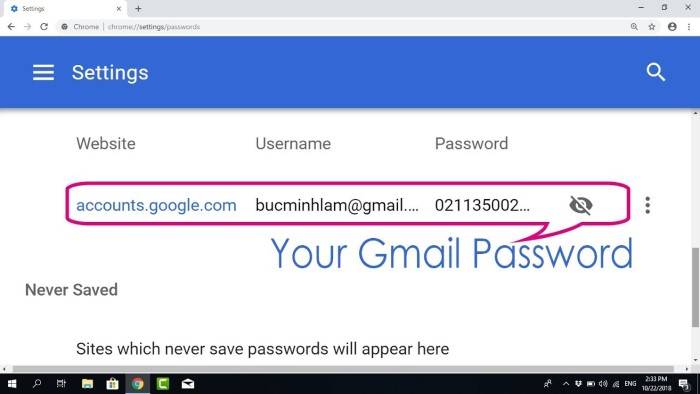
Not really. Gmail never reveals your password once you’ve created it. It can be viewed through browser or device password caches, though.
View Saved Passwords in Google Chrome
- Launch Chrome on your computer
- Click the three-dot menu (top right)
- Go to Settings > Autofill > Password Manager
- Use the search box and enter “Gmail”
- Click the eye icon to the side of the saved Gmail entry
- Authenticate on your device (PIN, fingerprint, etc.)
- Your Gmail password will be displayed
Verify using Google Password Manager
Google stores passwords on synced devices in Password Manager.
- Go to: https://passwords.google.com
- Sign in to your Google Account
- Type “Gmail”
- Tap the eye icon to display saved password
Verify iPhone/iPad Saved Passwords
- Tap Settings > Passwords
- Use Face ID or Touch ID
- Type “Google” or “Gmail”
- Tap the result to display saved password
Android Saved Passwords Check
- Settings > Google > Manage your Google Account
- Tap Security > Password Manager
- Type “Gmail”
- Tap and see the saved password
MacBook/iMac Using Mac Keychain
- Launch Keychain Access with Spotlight
- Search Gmail or Google
- Double-click the item
- View Show password
- Authenticate to show password
What If the Password Isn’t Saved?
If you don’t have the password saved or remembered, reset is the only option.
How to Restore Your Gmail Password (All Devices)
- Go to https://accounts.google.com/signin/recovery
- Phone number or email
Google will ask for:
- Last password you remember
- 2FA verification (phone/email)
- Device login verification
- Backup codes (if configured)
- Full instructions on how to set up a new password
- If You Have No Access to Recovery Means
- Hit “Try another way” multiple times
You will be asked to:
- Respond to security questions
- Use backup codes
- Wait 72 hours for identity verification
Pro Tip: Turn on recovery email and phone number today at: https://myaccount.google.com/security
How to Change Gmail Password (When You’re Signed In)
- Go to: https://myaccount.google.com
- Security > Signing in to Google > Password
- Enter current password
- Enter new password (use good mixtures)
- Creating Good Gmail Passwords (2025 Policy)
- Use 12+ characters
- Mix upper, lower case, numbers, and symbols
- Avoid dictionary words
- Use password generators (like Bitwarden, 1Password)
Using a Password Manager for Gmail
Tools such as:
- Bitwarden
- 1Password
- LastPass
- Dashlane
Allow you to save and auto-fill secure Gmail passwords
How to Secure Your Gmail After Recovery
- Enable 2-Step Verification
- Remove old devices from your account
- Receive notification for suspicious activity
- Update recovery email and phone periodically
- Don’t log in on public machines
What Not to Do:
- Never share your Gmail password
- Don’t jot it down in a note
- Don’t use it as the password for another account
- Don’t fall for phishing emails that require you to confirm your password
Recovery for Business Gmail (Google Workspace)
If you have a business domain Gmail (such as [email protected]):
- Reach out to your Admin
- Admin resets password via Google Admin Console
Cross-Device Recovery with Chrome’s Sync Feature
If you’re signed in to Google Chrome and sync is enabled, all your saved passwords, your Gmail logon, for instance—are recoverable across any device. Had you synced the Gmail password on your office desktop, for instance, then you can access it from your home desktop or even android phone if you are logged in to Chrome. You just need to ensure sync is enabled by going to Chrome Settings → You and Google → Sync and Google services. This mid-sync centre makes it an easy task to retrieve passwords where you are logged in.
Recovering Gmail Password After Formatted Device
Formatted your phone or computer and lost the login access to saved credentials? Don’t worry. Google also has a solution to get your password even under these circumstances. While retrieving the password, you can click “Try another way” and provide some other phone or email verification. If you’ve forgotten your password. Then click “Forgot password?” and instructions will be given. Having recovery methods like telephone numbers or other email addresses available beforehand makes your recovery rate several times higher.
The Use of Two-Factor Authentication (2FA) in Password Recovery
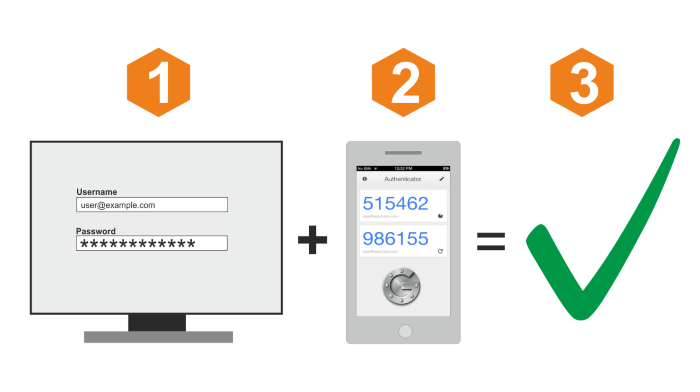
Though 2FA adds an extra security step. It also gives you an alternate recovery channel for your Gmail password. If you’ve forgotten your password but still have access to either the phone number registered with you or the Google Authenticator application. Then you can authenticate on recovery. Password recovery in accounts supporting 2FA also typically includes this added step. It comes with security and quicker recovery through authenticated access.
Trying Out Your Password Manager’s Export Functionality
All of the top password managers provide you with the option to save your saved credentials as an encrypted file. If you’d used a tool like that before. Then you should be able to restore your original Gmail password from a previously backed up export. Search for an “Export Vault” or “Download Backup” in your password manager. Safeguard this file and decrypt it on trusted systems only.
Be cautious of Phishing Pages When Resetting Password
When looking for methods to recover or retrieve your Gmail password, ensure you are on Google’s authentic page (accounts.google.com). Phishing websites are copies of Gmail’s site and steal your details in the form of recovery forms. Do not tap suspicious ads or third-party websites. Look at the address and for HTTPS lock icons in the browser. Security will save you from losing access permanently.
Training Individuals to Recover Gmail Password Safely
Whether it’s for your parents, a co-worker, or a student, becoming proficient at leading someone through password recovery is a digital-age skill. Use plain language, highlight steps such as looking into the “Saved Passwords” area of browsers, and lead them through responsibly using “Forgot password?” Underscore establishing recovery options beforehand and employing a password manager for later ease. Passing on this information can prevent one from unnecessary frustration and locked accounts.
Check Saved Passwords in Password Managers
Most people also employ password managers to securely maintain Gmail and other passwords. If you ever put your Gmail password in a manager. Then you can launch the program, type “Gmail” or “Google” and view your saved login credentials. It contains your email and password. Most of such programs also have browser add-ons. It auto-fills logins on login sites, thereby making recovery even easier.
Recover Gmail Account Without Password or Recovery Information
If you’ve forgotten your Gmail password and don’t have access to your recovery phone or email. Then your last resort is to answer Google’s account recovery questions. Visit the Gmail Account Recovery page. Then enter your email, and follow the steps. Give your last remembered password, answer any security questions. Confirm previous login locations/devices. Wait for Google to verify your identity. The process might take a few hours to a few days.
Tips on Never Losing Access Again in the Future
In order to prevent password issues in the future. Attempt to enable 2-Step Verification using Google Authenticator or your phone number. Make sure that you’ve updated your recovery phone number. Also the email address in account settings. Keep your login credentials saved in a secure password manager. Above all, jot down your backup codes or save them securely. These safety nets, no matter how small, will rescue you from monster headaches when you’re dumb enough to lose your password again.
FAQ
Is recovery of Gmail possible without the phone number?
Yes, if you have a recovery email or other verification factors.
My Gmail password has been changed by someone.
Try recovery immediately and report unauthorized usage.
Can I recover the password by calling Google?
No phone support. Portal of recovery only.
Am I able to view my Gmail password in the Gmail app?
No. Stored passwords won’t be shown in the Gmail application.
Does changing my password log other users out?
Yes, excluding trusted devices and verification.
It’s easy to forget your password. But if you’re with stored logins in the browser, password managers and Google’s robust recovery mechanisms. You’re never locked out forever. Follow the guide above to recover your account, add security, and live without stress.
If you haven’t already, go ahead and look through your recovery options, change your password to be more secure, and start using a password manager – your future self will thank you.