In our online-first lives, your email is not merely a messaging tool—it’s the hub for your apps, accounts, banking, social media, and more. That’s why your Gmail password is one of the most crucial personal security you own. What to do when you change your Gmail password and then, your iPhone begins to display error messages such as:
“Cannot Get Mail”, “Account Error”, or “Enter Password”?
If you’re asking yourself how to update your Gmail password on your iPhone, you’re not alone.
No matter the reason you’ve updated your password. If it was for security reasons, recovering your account, or because Google asked you after detecting suspicious behavior. Your iPhone won’t automatically sync the new credentials.
Here, we take you through the step by step process of resetting your Gmail password on iPhone. Regardless of whether you are using the stock Mail app, the Gmail app, or have your Google account synchronized across iOS apps like Calendar, Contacts and Notes.
Why You Need to Update Gmail Password on iPhone
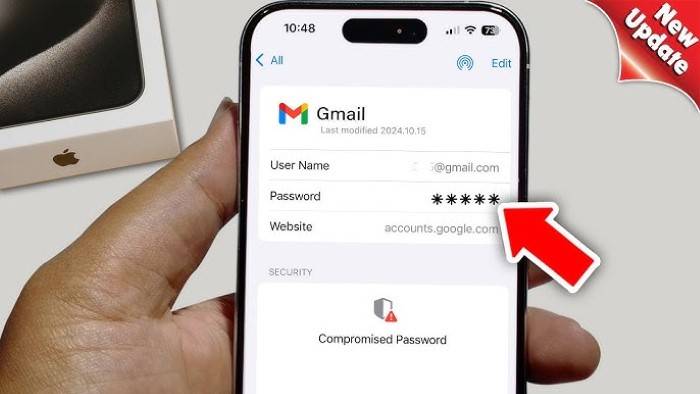
When you change your Gmail password on another computer or via the web, your iPhone does not pick up the new password by itself. Gmail authentication will fail silently or will provide you with error messages instead.
You can get:
- “Cannot get mail: Username or password is incorrect”
- “Update your Google account settings”
- “Re-enter the password for the account ‘Gmail'”
- Or just no new e-mails at all
Without updating your password, your iPhone loses syncing permission for Gmail, Google Contacts and Google Calendar.
So let’s get that fixed, now and understandably.
How to Update Gmail Password on iPhone Mail App (Apple Mail)
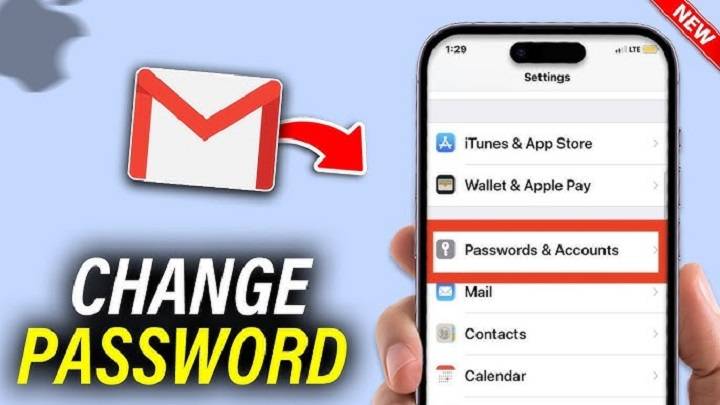
If you have Apple’s stock Mail app with your Gmail account configured via “Passwords & Accounts” or “Mail Accounts,” that’s where you need to begin.
Steps:
- Open Settings on your iPhone
- Scroll down and click on Mail
- Tap on Accounts
- Select your Gmail account
- Tap Re-enter Password or Account > Password > Edit
- You will be presented with a Google sign-in screen
- Enter your new Gmail password
- Tap Next and proceed with authentication
- Tap Allow when prompted for permissions
- Done! Your Gmail is sync’d again
Tip: If you don’t have a “Re-enter Password” button, remove and re-add the account (see below method).
Alternative: Remove and Re-add Gmail to Mail App
If re-entering the password didn’t work, or you’re still seeing errors, here’s a clean workaround:
Steps:
- Go to Settings → Mail → Accounts
- Tap on your Gmail account
- Tap Delete Account
- Confirm deletion (don’t worry—emails are safe in your Gmail account)
- Now go back to Settings → Mail → Accounts → Add Account
- Tap Google
- Enter your email and new password
- Enable sync for Mail, Contacts, Calendar and Notes
- Tap Save
✅ Your Gmail account is now current with the new password.
Change Gmail Password on iPhone Gmail App (iOS Gmail App)
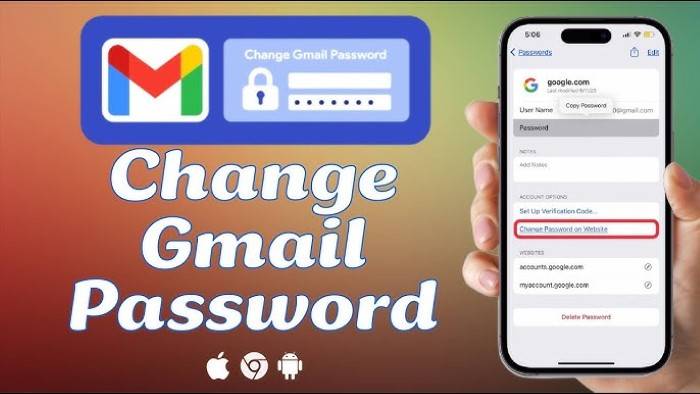
If you’re using the Gmail app shipped with Google (not Apple Mail), it’s even easier to change the password, but with some nuance.
Automatically Logged Out
If the Gmail app has logged you out automatically after a password change:
- Open the Gmail app
- Tap Sign In when prompted
- Enter your new Gmail password
- If you have 2-Step Verification, see instructions
- Done!
Still Logged In but No Emails Loading
Sometimes you’ll be logged in, but nothing will be refreshing.
Do this:
- Tap your top-right profile icon
- Tap Manage accounts on this device
- Delete your Google account
- Add it again with new credentials
Update Gmail Password for Google Calendar, Contacts, Drive, and Notes
If you use Google for something other than Mail, like syncing contacts, notes, calendars or backing up photos using Google Photos, you need to get password sync working across the board.
Steps:
- Go to Settings → Mail → Accounts → Gmail
- Tap on Account > Re-enter Password
- Log in with new credentials
Make switches ON for services like:
- Contacts
- Calendars
- Notes
Your whole Google world is now synced on iPhone.
How to Update Gmail Password with iOS Autofill
If your iCloud Keychain is enabled, chances are that you have also saved your old Gmail password in there.
Steps:
- Go to Settings → Passwords
- Authenticate using Face ID/Touch ID
- Search for “Gmail”
- Tap on the Gmail entry
- Replace with your new Gmail password
- Tap Done
iOS will now fill your new credentials automatically for app and Safari logins.
Gmail Not Syncing on iPhone After Password Change? Try These Fixes
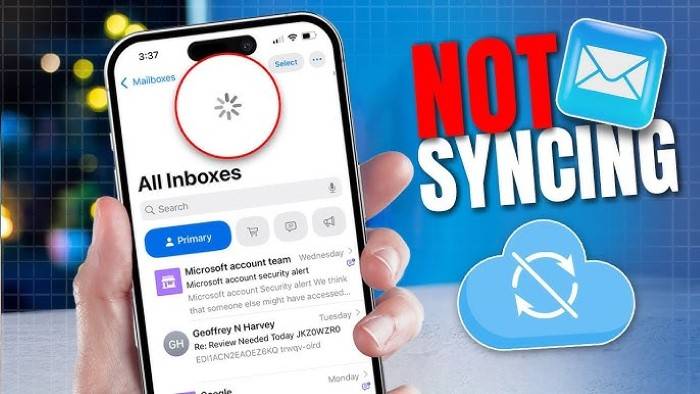
At times even after password change, your Gmail will simply not sync.
Try these troubleshooting steps:
✅ Restart Your iPhone
Works like magic.
✅ Toggle Airplane Mode On and Off
Forces network refresh.
✅ Remove and Re-add Gmail Account
Re-authentication usually clears lingering errors.
✅ Check App Permissions
Settings → Gmail → Enable Cellular Data
✅ Update iOS
Ensure you’re on the latest iOS version. Outdated software has a knack for causing account sync issues.
✅ Turn Off 2FA and Re-enable Later
If Two-Step Verification is causing login failure, disable it temporarily on your Google Account through the web.
Gmail Password Update on iPhone Using Third-Party Email Apps (Outlook, Spark, Edison)
If you have third-party email clients, it’s different:
For Outlook:
- Open Outlook
- Tap on profile icon → Settings
- Tap on Gmail account
- Choose Update Account Settings
- Type in new password when prompted
For Spark or Edison:
Same thing! Go to Account Settings, remove and re-add Gmail, or reauthenticate.
How to Verify if Gmail Password Successfully Updated
You can verify Gmail access restored by:
- Opening the Mail app and observe if new mail arrives
- Sending/receiving email using Gmail app
- Visit Settings → Mail → Accounts → Gmail to verify sync is turned on
- Verifying using Google Calendar app if events are syncing
- Sending a test e-mail from your iPhone to another email
Why Gmail Password Updates are Important for Security
Renaming your Gmail password every now and then or after suspicious behavior is one of the most important steps to secure your life online.
Here’s why it matters:
- Stops unauthorized entry
- Protects all associated apps (YouTube, Drive, Docs, etc.)
- Keeps your messages and credentials private
- Creates re-authentication on all devices
Always enable 2FA (Two-Factor Authentication) for added security.
FAQ
I changed my Gmail password, but the iPhone still shows the wrong password. Why?
You likely haven’t updated the password in iOS settings. Go to Mail → Accounts and re-enter it.
Is it dangerous to remove my Gmail account from my iPhone?
No. It only removes it from the phone. Your emails are still safe in your Gmail account online.
Can I reset the Gmail password from Gmail settings on iPhone?
No. Passwords are changed only via Google Account on the web or Gmail app, not from iOS settings.
What will happen if I don’t change my Gmail password on my iPhone?
You won’t receive emails anymore and lose sync for contacts, calendar and other integrated services.
Can I use Gmail without the app on iPhone?
Yes. Utilize the native Mail app or access Gmail using Safari browser.
Power Hacks Gmail + iPhone Owners
- Use Mail Fetch instead of Push for better battery
- Set up VIP contacts in Mail for instant notifications
- Use Siri Shortcuts to streamline your email
- Archive instead of delete emails to keep your mailbox clean
- Enable Google’s “Security Checkup” every year
It sounds easy enough to change your Gmail password on an iPhone. But it’s the key to restoring seamless sync between your other apps.
Regardless if you use the official Gmail app, the Apple Mail app, or some third-party email client. It’s easy once you figure out where to look.
It’s 2025 and safeguarding your Google account is not just a choice. It’s also a necessity. That you’ve now seen how to change your Gmail password throughout the iPhone’s overall system means you’re now more apt to stay digitally secure without ever losing a single message.
Want to get back to Gmail flow on your iPhone? Go ahead, reconnect, resync, and regain control of your inbox.