
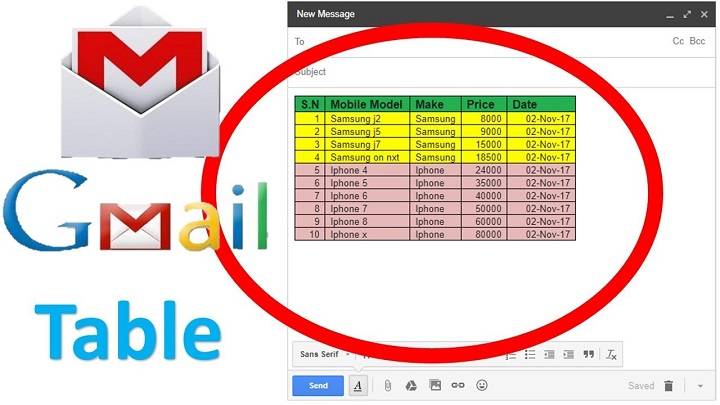
In the fast-paced digital communication era today, the ability to present information in a professional and clean format can make or ruin an email. Whether you’re sending meeting minutes, product details, comparison charts, or to do lists, tables are one of the most straightforward and efficient means of communicating. But here is the catch, Gmail with all your powerful features, lacks an inherent “Insert Table” tool.
That’s why we have so many customers inquiring: “How do I insert a table in Gmail?” or “Can I create tables in Gmail emails?”
This tutorial has everything, right down to the limitations and hacks, as well as advanced hacks and browser solutions. Whether you’re a business user, professional or student, we’ll have you presenting your information in nice, organized, lovely, tabled form, right within Gmail.
What Is the Challenge with Tables in Gmail?
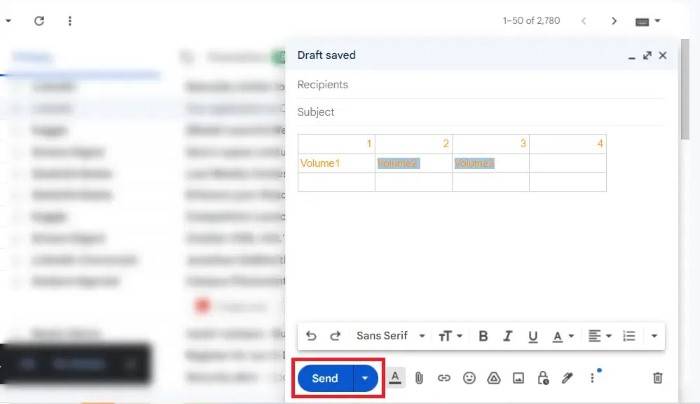
Despite Gmail’s smart compose, templates, and formatting tools, inserting a table isn’t straightforward.
There is:
- No built-in table creation button
- No way to directly draw rows/columns
- Limited support for pasting tables from Excel or Sheets
However, it’s absolutely possible to insert a well-structured table in Gmail. You just need to use the right method.
Methods to Insert Table in Gmail
Let’s walk through the best. Most reliable methods to insert tables into Gmail emails.
Insert Table in Gmail Using Google Docs (Best and Easiest)
This is the most user-friendly way and works perfectly in Gmail.
Steps:
- Open Google Docs
- Create a new document
- Click Insert → Table, and select the size (e.g., 4×3)
- Fill in your data
- Format with colors, borders, text alignment
- Highlight the table → Right-click → Copy
- Go to Gmail → Click Compose
- Right-click inside the email body → Paste
Result: A beautifully formatted table appears directly in the email!
Why it works: Google Docs and Gmail both live in the same ecosystem. So formatting is preserved.
Tips:
- Use bold headers for clarity
- Adjust column widths in Docs first
Avoid very large tables—they may break on mobile view
Insert Table by Pasting from Google Sheets
Google Sheets also allows clean table copying.
Steps:
- Open Google Sheets
- Create your table (include headers, rows, formulas if needed)
- Format your table with borders and colors
- Select and Copy the table
- Go to Gmail → Compose
- Paste into the body
Note: Conditional formatting, charts and formulas will not transfer—only the visible static table.
Use this for:
- Financial summaries
- Product listings
- Weekly schedules
Insert a Table Using Microsoft Excel or Word
Not using Google Docs? No problem. Microsoft Office works too.
Steps:
- Create a table in Excel or Word
- Format it for readability
- Select the table and press Ctrl + C (Windows) or Cmd + C (Mac)
- Open Gmail → Click Compose
- Paste directly into the message body
Outcome: Table appears with formatting retained in most cases.
Warning: Advanced formatting like macros, hyperlinks, or merged cells may break.
Insert Table Using HTML in Gmail (Advanced)
Want precise control over layout, color, and spacing?
Use HTML code for the table!
Steps:
- Create HTML table code
- Use a tool like HTML Mail or Mailtolink.me
- Paste the HTML code
- Generate the email and send to yourself
- Forward that email OR copy its content into a new email
Example HTML Table:
html
Copy
Edit
<table border=”1″ cellpadding=”8″ cellspacing=”0″>
<tr>
<th>Item</th>
<th>Quantity</th>
<th>Price</th>
</tr>
<tr>
<td>Notebook</td>
<td>5</td>
<td>$10</td>
</tr>
<tr>
<td>Pen</td>
<td>10</td>
<td>$2</td>
</tr>
</table>
Pros:
- Fully customizable
- Add inline CSS
- Works on all email clients
Cons:
- More technical
- You can’t paste HTML code directly into Gmail’s visual editor
Use a Gmail Table Extension or Add-on
Some Chrome extensions allow inserting tables with ease.
Popular Options:
- Gmail Tables by cloudHQ
- Mail Merge with Tables
- Table Generator (browser tool + Gmail support)
How it works:
- Install the extension
- Use the “Compose” window with enhanced toolbar
- Click “Insert Table” and choose size
- Edit cells directly in Gmail
Best For: Repetitive tasks, templates, customer support, bulk emails
Insert Screenshots of Tables (Quick Fix)
When nothing else works or formatting is critical, take a screenshot of your table.
Steps:
- Create your table in Docs, Sheets, Excel, or Word
- Take a screenshot
- Save the image or copy it
- Paste or attach to your Gmail message
Note: Image tables are not searchable and aren’t responsive, but perfect for print-ready layout.
Bonus Tips: Formatting Tables in Gmail for Clarity
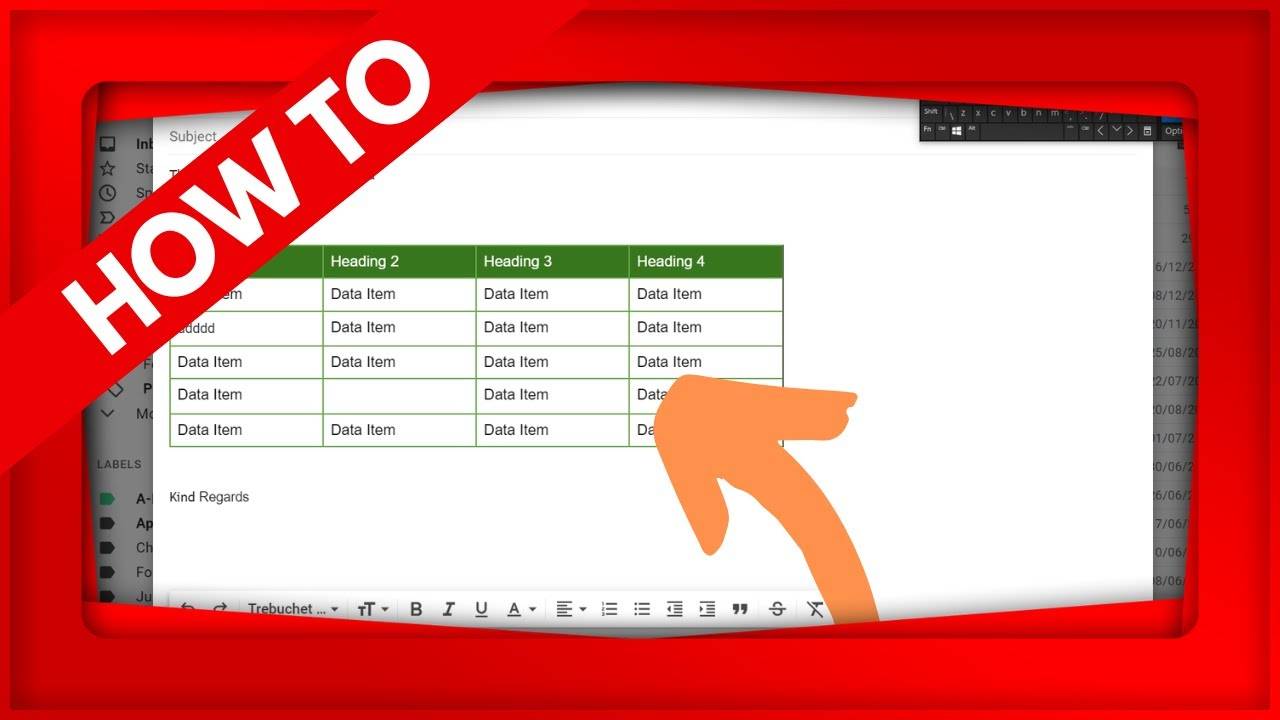
Once your table is inside Gmail, polish it for better readability:
✅ Use bold for headers
✅ Keep column widths narrow for mobile view
✅ Avoid too many rows—stick to 5–10 rows max
✅ Use soft background colors (light gray, beige)
✅ Double-check how it looks in Preview and Sent folder
Use Cases: Why Tables in Gmail Matter
Here’s when inserting tables in Gmail makes a difference:
📅 Meeting Agendas – Organize topics, speakers, times
🛒 Product Lists – Prices, SKUs, descriptions
📊 Reports – Summary of weekly/monthly performance
🗓️ Schedules – Timetables or shift rosters
📦 Order Confirmations – Items, quantity, delivery date
Troubleshooting Common Gmail Table Issues
Problem: Pasted table breaks into plain text
Fix: Use Google Docs or Sheets instead of Excel
Problem: Table looks different in recipient’s email
Fix: Test by sending to yourself; use inline styles with HTML
Problem: Gmail shows empty cells
Fix: Ensure your source table has no hidden formatting (clear formats before copying)
Keyboard Shortcuts to Speed Up Gmail Table Workflow
While Gmail doesn’t have shortcuts for tables, here are helpful ones:
- Compose email C
- Insert link Ctrl + K
- Bold text Ctrl + B
- Paste table Ctrl + V
- Send email Ctrl + Enter
- Undo Ctrl + Z
You can also enable Gmail shortcuts from:
- Settings → See All Settings → General → Enable Keyboard Shortcuts
FAQs
Can I draw a table directly in Gmail?
No. Gmail does not have a native table-drawing tool.
Why does my pasted table lose formatting?
It depends on the source. You can use Google Docs or Sheets for best results.
Can I edit the table after pasting it in Gmail?
Yes. But only the text. You can’t change rows/columns inside Gmail.
Will recipients see my table correctly?
If you pasted it from Google Docs/Sheets or inserted it as HTML. Then yes!
Can I use tables in Gmail mobile app?
You can view tables, but inserting is easier on a desktop.
Mobile Workaround: Insert Table on Gmail Using iPhone or Android
While inserting tables from a mobile isn’t as smooth as desktop, there are some clever kludges. You can create your table within the Google Docs app or Google Sheets mobile app, make it nicely formatted, and copy-paste into the Gmail mobile app. Another alternative is to compose your email with the table through a third-party application such as Microsoft Word mobile, then send over the content through Gmail. Although the formatting will be slightly different, mobile users can now incorporate structured data without the use of a computer. Preview the message in your “Sent” folder after testing by sending an email to yourself for optimal results.
Using Email Templates with Tables in Gmail
If you consistently send emails with standardized table layouts, sales reports, status updates, or price comparisons. Then save your formatted tables in Gmail Templates. To do this, enable Templates by going to: Gmail Settings → Advanced → Enable Templates → Save Changes. With Templates on, compose an email using your pre-formatted table. Press the three dots in the lower right corner, and select: Templates → Save draft as template. Later on, you can copy this saved version in a mere two clicks. Save tons of time when performing repetitive tasks.
Best Practices for Sharing Interactive Tables in Gmail
At times static tables just won’t cut it. Especially if you want your recipient to interact with the data, sort columns, type in comments, or collaborate. Then include a live link to a Google Sheet rather than copying the table. You can write a short note like: “Click here to view and modify the shared task tracker: [Add Google Sheet link]”. This gives your recipients full control without cluttering your email body. It’s cleaner, more collaborative, and perfect for project teams, stock, or schedule collaborating via Gmail.
Gmail lacks a single “Insert Table” button. Yet that doesn’t preclude you from inserting neat, responsive, and beautiful tables into your Gmail.
If you prefer copying from Google Docs, building in Google Sheets, hacking HTML, or relying on Chrome extensions. There’s a perfect table method for each Gmail user in 2025.
Tables enhance readability, organization, and professionalism. Which are the three things every email should aim for. Now that you’ve learned the different ways to insert tables into Gmail. Start crafting better emails that inform, impress, and convert.