Where Is Archive in Gmail? Your Complete Guide to Finding and Maximizing Gmail’s Archive Feature


In the latest age of e-mail, cluttered inboxes and countless threads of messages are productivity killers. One of the most natural email programs available, Gmail offers an individual a number of tools to maintain his/her inbox tidy and work process streamlined. Among them is the Archive button, a powerful, incredibly popular, yet somewhat mysterious function to many.
If you ever asked yourself, “Where is Archive in Gmail?” or “What does archiving an email do?” you’re not the only one.
Similar to uncovering concealed trails in a mountain range, taking control of Gmail’s archive function opens up a new universe of inbox management. In this tutorial, we’ll show you all that you need to know about Gmail’s archive: where it is located, how to use it, why it is unique compared to deleting, and how to integrate it into a great email plan.
Let’s embark on this virtual journey to find the elusive yet functional Archive feature.
What is ‘Archive’ in Gmail?

Archive” is a frightening-sounding term, but it is simple in Gmail. Archiving a message will not erase an email but move it out of your Inbox. The message is still kept in your All Mail folder and can be accessed if you search for it. You can think of it as tidying up your inbox without losing your emails for future reference.
What archiving a message does:
- It disappears from the Inbox
- It remains in your Gmail account in “All Mail”
- It retains labels, if any labels were applied
- It is still visible in search results
- It returns if someone replies to the thread
Archiving is, in short, a clean and reversible way of removing messages from your immediate view without giving up any information.
Where Is Archive in Gmail? (Desktop Interface)
Skip the most frequently asked question: Where’s the Archive button in Gmail?
If you’re in Gmail on a desktop browser, here’s what to do:
In Inbox View:
- Mouse over over any email
- Small toolbar comes up on the right
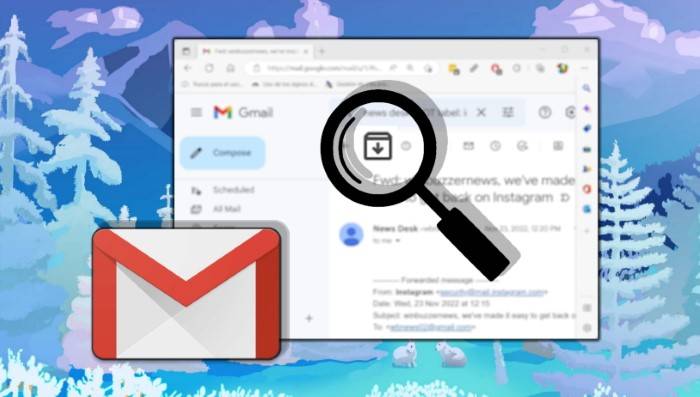
- Click on the archive icon (box with arrow pointing down)
Done! The email is archived instantly
Within an Email:
- Open the email that you’d like to archive
- Find the top toolbar
- Click the archive icon (box and downward arrow)
Notice a temporary message: “Conversation archived. Undo” in the bottom-left of your screen. Tap on “Undo” to unarchive the email at once.
Where Is Archive in Gmail? (Mobile App)
The mobile Gmail app (Android and iOS) has a different layout, but it’s the same feature for archiving.
Steps in the Gmail app:
- Open the Gmail app
- Swipe left for a long time or tap on the message to archive
- Swipe right/left (if you have archive as the default swipe action) or tap on the top toolbar archive button
- The email will be archived and will be deleted from your inbox
- You can also open an email and tap on the top toolbar archive button.
Tip: You can invert swipe actions in Settings → General settings → Swipe actions → Select archive in one of the directions.
What Does Archiving an Email Do?
Knowing what archiving an email does makes you utilize Gmail effectively.
Archived emails aren’t stored in an “Archive” folder. They’re stored in the All Mail folder.
How to view archived messages:
- Go to the left side panel
- Scroll down and click More
- Click on All Mail
- View messages that don’t have the Inbox label
Or, in the search box:
- Look for specific senders, keywords, or dates
- Use operators like has:nouserlabels to retrieve unlabelled archived mail
- Archived mail remains accessible through Gmail’s efficient search system.
Searching Archived Emails using Search Filters
Manually scrolling through All Mail is tiring at times. Gmail does support advanced search operators after all, to find archived emails quicker.
Some useful filters:
- in:all – Searches all your Gmail, archived email included
- -in:inbox – Displays emails which are not in your inbox
- from:[email protected] – Show emails from a specific sender
- older_than:1y – Emails older than a year old
- has:attachment – Emails that have attachments
You can even use ones such as:
- from:paypal -in:inbox has:attachment
This search will show the archived PayPal emails that have attachments.
Unarchiving an Email in Gmail
You accidentally archived something? Want it back in your inbox?
Desktop Method:
- Go to All Mail
- Locate the message
- Click on it and click Move to Inbox on the toolbar at the top
- Mobile Method
- Go to All Mail (tap hamburger icon → scroll down)
- Tap the message
- Tap the three dots → Move to Inbox
And that’s it! The message now is in your main inbox.
Archive vs. Delete – What’s the Difference?
Most people get archive and delete mixed up, but they’re actually quite different actions.
- Feature\tArchive\tDelete
- Storage\tEmail is saved\tEmail is moved to Trash
- Retrieval\tEasily retrievable\tPermanently deleted after 30 days
- Searchable Yes\tOnly until deleted forever
- Reappears on reply\tYes\tNo
- Best use For cleanup and cleaning up For unwanted email removal
And so, when unsure whether to delete or not, archive is the solution.
Power Uses of Archive in Gmail
Archiving isn’t cleanup in and of itself, it’s an email managing productivity approach.
Here are how power users make the most of it:
- Keep inbox zero: Archive everything read through or done
- Automate archiving with filters (e.g., older than 7 days newsletters)
- Use together with labels for organized, searchable storage
- Archive all responded emails, to maintain inbox only for open issues
This allows one to prioritize and use your archive as a backup copy.
Create Filters to Auto-Archive Emails
You can have Gmail automatically archive emails from a particular sender or with a particular subject.
Steps:
- Go to Settings → Filters and Blocked Addresses
- Click “Create a new filter”
- Enter criteria (e.g., from:[email protected])
- Click “Create filter”
- Check Skip the Inbox (Archive it)
- Put in a label (if desired), then “Create filter”
These emails now auto-archieve and don’t spam your inbox anymore.
Offline Access to Archived Gmail Emails
Do you wish to view your offline archived messages?
Steps:
- Gmail → Settings → Offline tab
- Enable Offline Mail
- Choose sync settings (30, 60, or 90 days)
- Save changes
Now Gmail will have a local cache which will cache archived messages, which can be viewed offline.
Gmail Archive for Business Users
In the workplace, archiving is helpful in maintaining records, regulation, and business process flow.
- Legal team archives emails for reference and not filling inbox
- Teams archive deals after deals are closed
- Administrators search across accounts for archived emails using Google Vault (business version)
- HR and finance use labels + archive for file storage
Tips to Master Gmail Archive Like a Pro
- Archive with e key shortcut in a flash (activate shortcuts in Settings)
- Couple archive with labels like “Finance,” “Projects,” “Receipts”
- Archive newsletters using auto-filters so you won’t have inbox bloat
- Rapidly scan your “All Mail” weekly for highlight responses
- Batch archive using Smart Labels or software like Clean Email
Tools That Help with Gmail Archiving
- Clean Email – Automatically archive emails based on rules
- Mailstrom – Bulk clean and archive by topic/topicality
- Shift or Mailbird – Desktop apps with integrated archive buttons
- Zapier – Automate workflows (e.g., archive Slack digests)
These add-ons take your Gmail archiving beyond the defaults.
Gmail Archive Frequently Asked Questions
Is it possible to delete a specific forwarded mail?
No. Archived messages cannot be deleted. They are retained in the “All Mail” label, not an Archive folder.
Q: Is it possible to archive multiple emails?
Yes. Choose multiple emails with checkboxes and then click on the archive icon in the toolbar.
Automatically archived emails are deleted after some time, right?
No. Archived emails stay forever until you manually delete them.
How do I know whether an email is archived?
If an email is in “All Mail” but not in “Inbox,” it’s archived.
How do I undo an archive?
Yes. Click “Undo” right after archiving or later and bring it to the inbox.
Learning and using Gmail’s archive feature is not button-mashing, it’s taking command of your inbox, your time, and your attention. You can use archiving to reach inbox zero or structure your digital life. It allows you to maintain your focus where it should remain without sacrificing valuable content.
Now that you know where the archive is located in Gmail, how it works, and how to unleash its potential to your benefit. You can start archiving intelligently and watch your inbox become a streamlined, efficient heaven.