Email remains the backbone of business and private communication-even in 2025 today. And even though sending attachments like PDFs, Word documents, or pictures is so passé these days, there’s one section that still leaves folks enigmatic with lots of questions raised about it: How do you attach an email to another email in Gmail?
If you’re forwarding a specific conversation for context, sending multiple emails as references, or attaching previous threads for documentation. Then the ability to attach an email inside another Gmail message can be incredibly useful.
Here, you’ll learn how to attach an email in Gmail on desktop and mobile, understand what format it sends in, get productivity tips, and find smart use cases to make this feature a regular part of your workflow.
Can You Attach an Email in Gmail
Yes. One can now send a single or multiple emails in a new message as .eml attachments. Anyone can open the attachments in Gmail, Outlook, or any other email client.
That is not like forwarding. If you forward, the content is attached. If you attach, the email is sent as a download file, a PDF or DOCX file, say.
The benefits are:
- Keeping the whole structure and metadata of the email
- Keeping the duplication or bloat to a minimum on your body of the message
- Keeping the headers, formatting, and attachments
It is ideal for support teams, HR, lawyers, or anyone that has to work with intricate email documentation.
Attaching an Email in Gmail (Desktop)
Step by step guide on how to attach an email inside another email using Gmail’s web interface.
Log in to Gmail in your browser
- Log in at mail.google.com with your Gmail account
Choose the email to attach
- Locate the message you wish to attach inside your inbox or some other folder
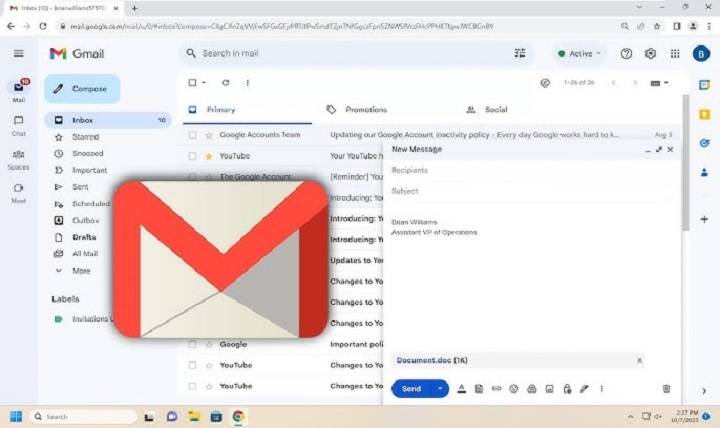
- Click and drag on the message. Drag it over into your email draft window
Drop the message into your new message
- Create a new message (click “Compose”)
- Drag the selected message into the body of the draft window
- Your email will now become a .eml file attachment at the end of your message
- Finish writing your message and Send
Alternate Method – Right-click Attach
- Open Gmail
- Choose the checkbox to the left of the message(s) to be attached
- Click on the three-dot More icon on the top bar
- Click Forward as attachment
- A new window with the emails you have chosen attached as files will open
- Write out your message and send as normal
You can attach multiple emails at once using this method—perfect for documentation or internal communication.
How to Attach an Email When Replying or Forwarding
Sometimes, you’re replying to an ongoing conversation and want to add a previous thread as an attachment.
Steps:
- Click “Reply” or “Forward” on the existing conversation
- Click the pop-out icon (the two diagonal arrows) to pop-out your reply in a new window
- Now drag the email(s) you wish to attach from your inbox into this new reply window
- They will appear as .eml file attachments
- Compose your message and hit Send
This places the full control of your email references in your hands without filling your reply body with clutter.
How to Attach Multiple Emails in Gmail
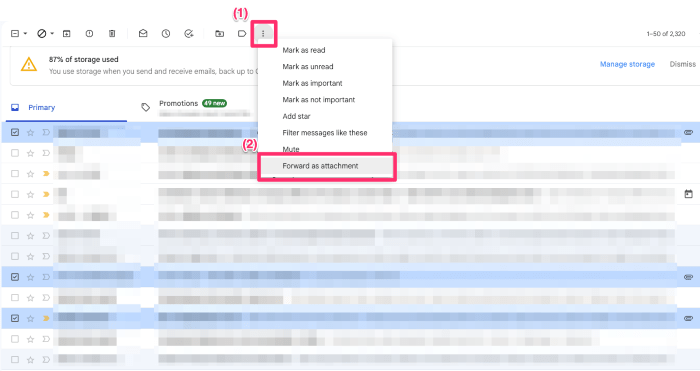
Multiple emails can be attached by making use of either drag-and-drop functionality or Forward as attachment option.
For drag-and-drop
- Select a few emails with Ctrl (Windows) or Command (Mac) keys held down
- Drop them all into your email compose
- They would appear as a list of .eml attachments
For shortcut keyboard method:
- Select all the emails you want to attach
- Top three dots → Click → Forward as attachment
- A new message window would pop up with all of them attached
This is also easy to use in sending several of the same message to a person or client without copying-pasting or retyping.
How to Open Gmail .eml File
The recipient will receive the email(s) sent as an attachment in the form of an .eml file.
How to open it:
- Double click the .eml attached file
- Gmail opens it in a preview page with full formatting, sender, subject and body intact
- You can reply or forward from there
virtually all the modern email clients (Outlook, Thunderbird, Gmail itself) natively .eml file format supported.
Can You Attach an Email in Gmail on Mobile?
No, Gmail mobile app (Android and iOS) hasn’t yet supported you to attach emails as .eml attachments to other emails.
Workaround:
- Use Forward option instead
- Or, open Gmail using mobile browser in desktop mode
- Tap on browser menu → Request desktop site
- Then follow desktop steps and attach emails
Yes, it is a little fiddly, but this ploy is a lifesaver if you are nowhere near a computer but need to dispatch an old email as a document at short notice.
Why Attach Emails Rather Than Forward?
Attaching emails gives you more form, flexibility and context.
Here’s why some prefer it:
- You don’t clog your e-mail with big forwards
- Recipient can save, search or download attached message
- You retain original time stamp and format
- You can attach numerous e-mails in one message
- Most appropriate for record-keeping, HR, or legal purposes
As customer support, if you ever have to forward an entire past e-mail conversation with a client to your boss, attaching them is convenient and time-saving.
How to Use Filters to Automate Email Attachment Flow
Although Gmail doesn’t attach emails automatically through filters, you can create filters and labels to delete emails that you may send or attach later.
Steps:
- Settings > Filters and Blocked Addresses
- New filter
- Conditions like from:[email protected] or subject:invoice
- Actions like Apply Label: Important
- And then click on that label and check all such emails to attach later
This semi-automates the process of gathering emails that you may send later or attach later.
Best Using Attaching Email in Gmail
There are many use cases where attaching emails will facilitate communication.
- Sending job application to HR
- Sending entire previous communication to a client
- Creating customer service conversations
- Adding first complaint messages to internal reports
- Leaving over a pile of quotes or proposals to your manager
- Sending legal evidences or audit logs
- Sending multiple updates from multiple different teams
This keeps them all informed without messy threads or duplicated info.
How to Rename Attached Emails in Gmail
You cannot rename .eml attachments from within Gmail. But do the following:
- First, download the .eml file
- Rename it on your end
- New message
- Attach files and attach the renamed .eml file
- Send normally
This is helpful if you wish to name email attachments correctly like “ClientA_Response.eml” or “Proof_of_Submission.eml.”
How to Save and Download an Attached Email
Saving an attached .eml file:
- Click on the attachment
- Click the download icon
- Save the file onto your computer or Google Drive
You can open this file anytime you’d like with your email client, or include it in future emails.
Can You Attach an Email Draft in Gmail?
Draft emails can’t be attached directly in Gmail because they don’t save as .eml files.
Workaround:
- Send the draft to yourself
- As soon as it hits your inbox, drag and attach like you would with any message
- Or, copy message and paste into a new one with new subject
How to Attach Emails from Multiple Accounts
If you have multiple Gmail accounts:
- Log into each separately (in separate windows or incognito mode)
- Forward email from Account A to Account B
- In Account B, then Forward as attachment or drag and drop and place in a new message
It comes in handy when batching email from anywhere on your business and personal Gmail accounts.
Keyboard Shortcut to Forward as Attachment
No keyboard shortcut exists in Gmail. But you can use the following technique:
- Use Shift + Click to open messages
- Press three dots and then Forward as attachment
To use quickly, make use of Chrome extensions or Gmail add-ons such as KeyRocket to open faster email management.
FAQs
Is it possible to attach with more than one email at once?
Yes, several emails can be attached using drag-and-drop or “Forward as attachment” feature.
Will the attached emails be editable by the receiver?
No. .eml files will not be editable by the receiver.
Is it possible to attach an email and other files (such as PDFs) in a single email?
Yes. Gmail also facilitates adding the email attachments along with a regular file to the same mail.
If an attachment is sent via email, it will not change the original date and time, correct?
Yes, all metadata, date, sender, subject, body are preserved in the .eml file.
Does Gmail impose any attachment file size limit on emails?
Yes. Gmail does support attachment up to 25 MB. If your attached mail is more than that, you can use Google Drive.
Do we need Gmail to open a .eml file?
Yes. Any other new mail client can open .eml files.
Can the email attachment be password-protected?
No, not really. You would have to zip them in a ZIP file and password-encrypt the ZIP.
Are .eml attachment emails searchable?
No, not in Gmail. It needs to be opened from the .eml file in order to view and search within its content.
Can emails in Gmail be attached as an addendum to a Google Calendar event?
No, although they can be referenced or forwarded to event attendees.
Is there a way the recipient would be able to tell the mail was attached, as opposed to forwarded?
Yes. The recipient can simply open the mail as an independent .eml file and can simply open it like an ordinary file.
Tips to Master Email Attachment in Gmail
- Drag-and-drop for speed
- Label mails you want to attach frequently
- Don’t attach mails with large attachments—use Google Drive
- Always preview before sending
- Use descriptive filenames if renaming .eml files
- Include a summary in your body message to guide the reader
- Send more than one message only when absolutely necessary, do not do too much
Placing an email in Gmail is a small thing, but trust me, it makes a huge impact on your productivity, continuity, and professionalization of emails. Instead of sending out long threads or cutting and pasting content, you simply attach any email, keeping it neat, clean, and organized.
Whether it is an academician sending assignment work, a lawyer organizing case files, or a head office sending it to notice of all teams, ending emails with attachments in Gmail is something you should know.
Now that you have learned how to add files on Gmail desktop and mobile, how to handle multiple attachments, and when to do it so as to achieve what you want to achieve, you’re set to take your email communication to the next level.